reCAPTCHA v3
Overview
Slotara uses Google reCAPTCHA v3 to protect the contact form from spam bots. Unlike v2, reCAPTCHA v3 is completely invisible — there's no checkbox, no image challenge, no interruption. Google scores each submission in the background and Slotara rejects anything that looks like a bot.
Getting API Keys
- Go to https://www.google.com/recaptcha/admin
- Click the + (Create) button
- Give it a label — e.g.
Slotara Production - Select reCAPTCHA type → Score based (v3)
- Under Domains, add your domain (e.g.
yourdomain.com)- For local testing, also add
localhost
- For local testing, also add
- Accept the Terms of Service and click Submit
- Copy both the Site Key and Secret Key
{warning.fa-exclamation-triangle} You must select reCAPTCHA v3 (Score based) specifically. v2 keys are not interchangeable with v3 — the verification API will fail silently if you use the wrong type.
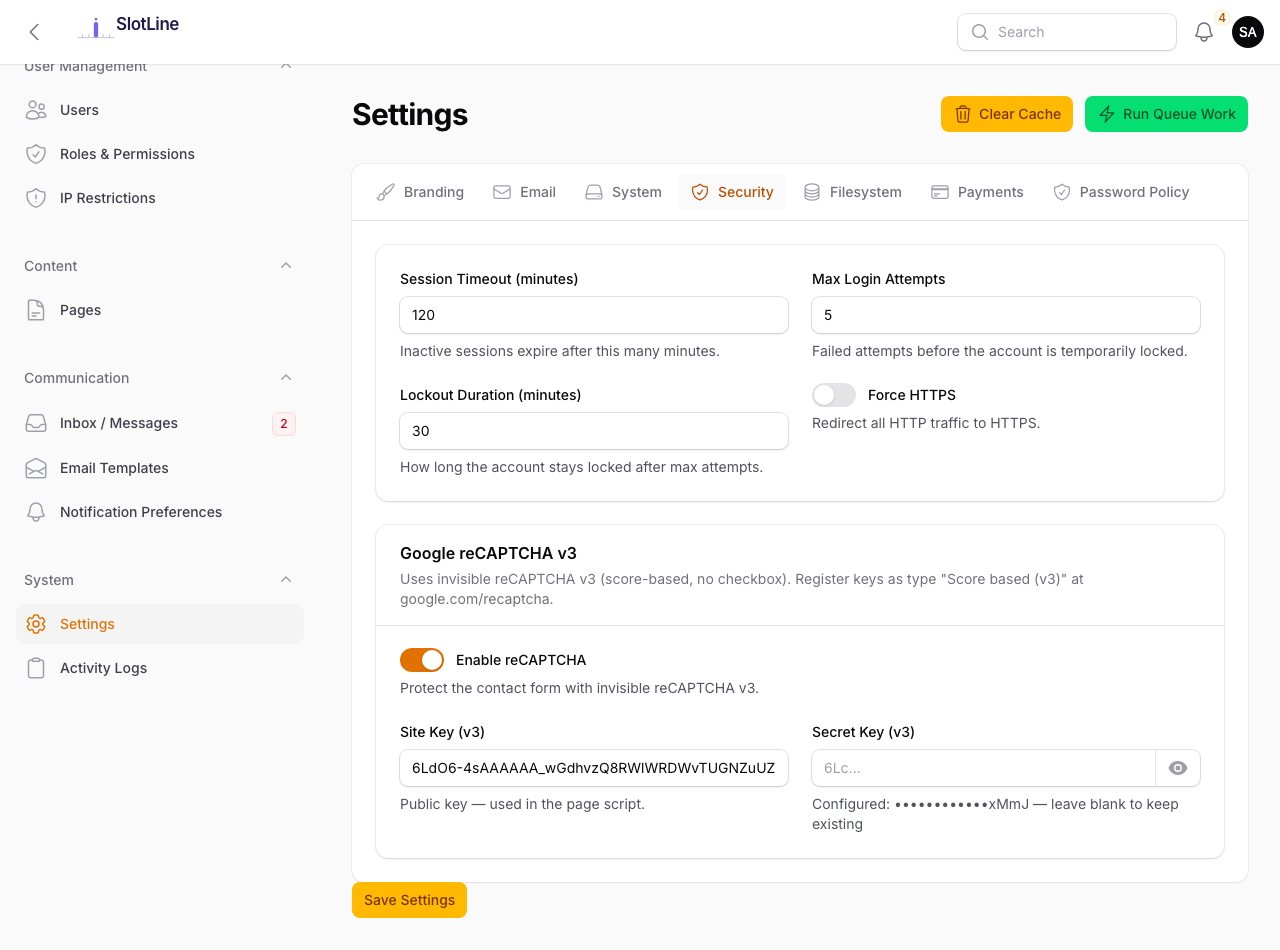
Configuration
Enter your keys in the admin panel:
| Field | Value |
|---|---|
| Enable reCAPTCHA | Toggle on to activate |
| Site Key | Starts with 6Le... — used in the frontend JavaScript |
| Secret Key | Starts with 6Le... — used for server-side verification only |
Or set directly in .env:
RECAPTCHA_SITE_KEY=6LeXXXXXXXXXXXXXXXXXXXX
RECAPTCHA_SECRET_KEY=6LeXXXXXXXXXXXXXXXXXXXX
{danger.fa-ban} The Secret Key must never appear in frontend JavaScript or client-side code. It is used only for server-to-server API calls. Exposing it allows attackers to bypass or forge reCAPTCHA tokens.
How It Works
The entire process is invisible to the user — they never see a checkbox or a challenge.
User fills in the contact form
          ↓
Google silently scores the session in the background
          ↓
Form submitted
          ↓
    Score ≥ 0.5? (looks human?)
    /          \
  Yes           No
   ↓             ↓
Form accepted  Form rejected:
               "We couldn't verify your
                submission. Please try again."
Real users almost always score above 0.7. Only automated bots and suspicious sessions are blocked.
Score Threshold
Google returns a score between 0.0 and 1.0 for each submission:
| Score | Interpretation |
|---|---|
1.0 |
Very likely a human — confident interaction |
0.9 |
Human — normal browsing pattern |
0.5 |
Slotara's threshold — below this is rejected |
0.3 |
Suspicious — possible bot or unusual pattern |
0.0 |
Almost certainly automated |
When a submission is blocked, the user sees a standard validation error:
We couldn't verify your submission. Please try again.Most legitimate users score above 0.7. The 0.5 threshold provides strong bot protection without blocking real users.
To change the threshold, set
RECAPTCHA_THRESHOLDin your.envfile (e.g.RECAPTCHA_THRESHOLD=0.7for stricter,0.3for more lenient).
Disabling reCAPTCHA
To disable reCAPTCHA (e.g. for development or internal-only deployments):
- Go to Admin → Settings → Security
- Toggle Enable reCAPTCHA off
- Save
The contact form continues to work — all submissions are accepted without score checking. The reCAPTCHA script is not loaded in the browser when disabled.