Dashboard & Settings
Dashboard
The admin dashboard is your platform health snapshot. It loads automatically when you visit /admin.
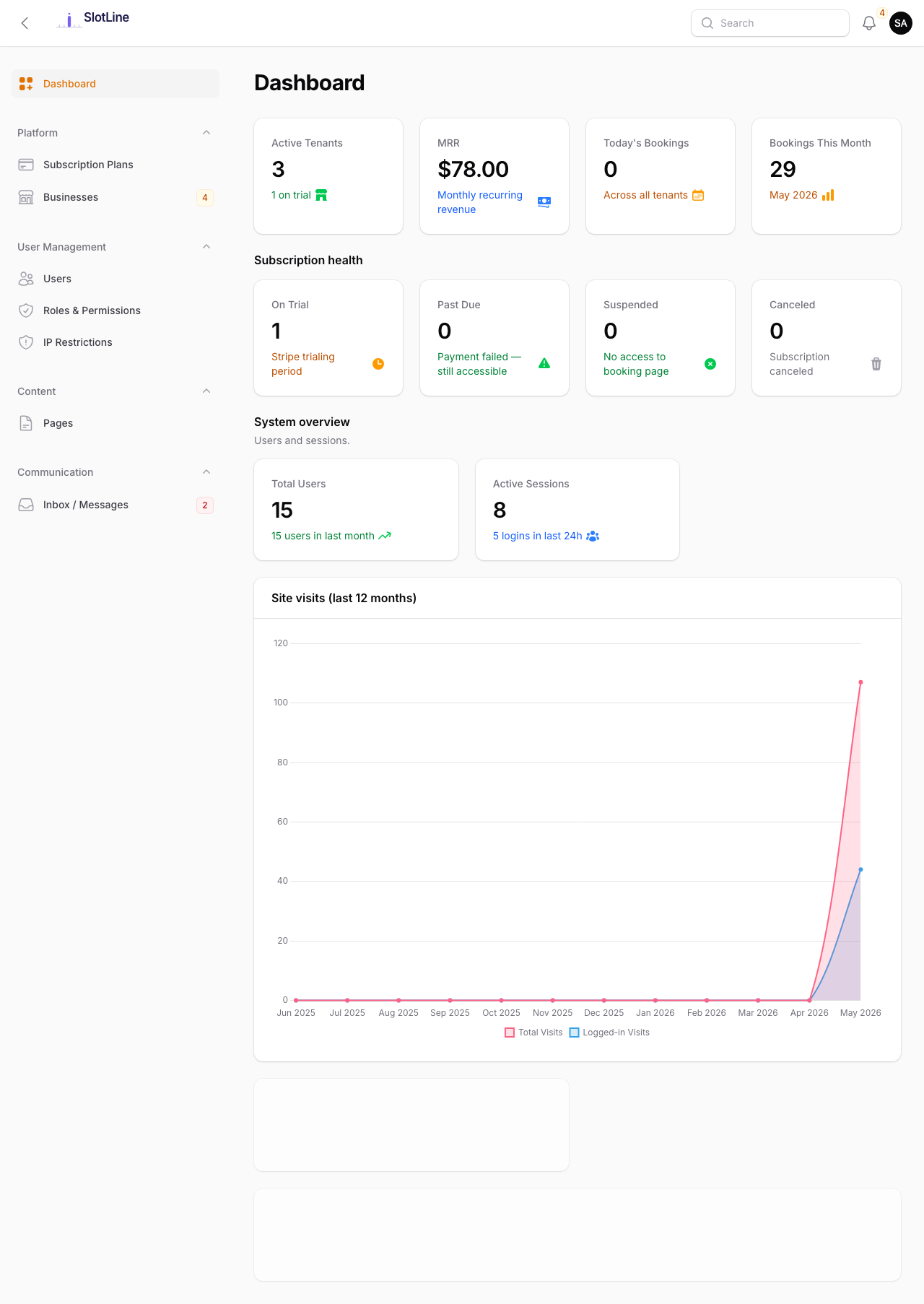
At a glance you can see:
- Total users and businesses registered
- Active subscriptions
- Recent user registrations
- Latest activity log entries
Settings Tabs
Navigate to Admin → Settings. All changes save immediately with no server restart.
Branding
Upload your logo and favicon, set the site name, and control the admin sidebar logo size. See Configuration → Branding.
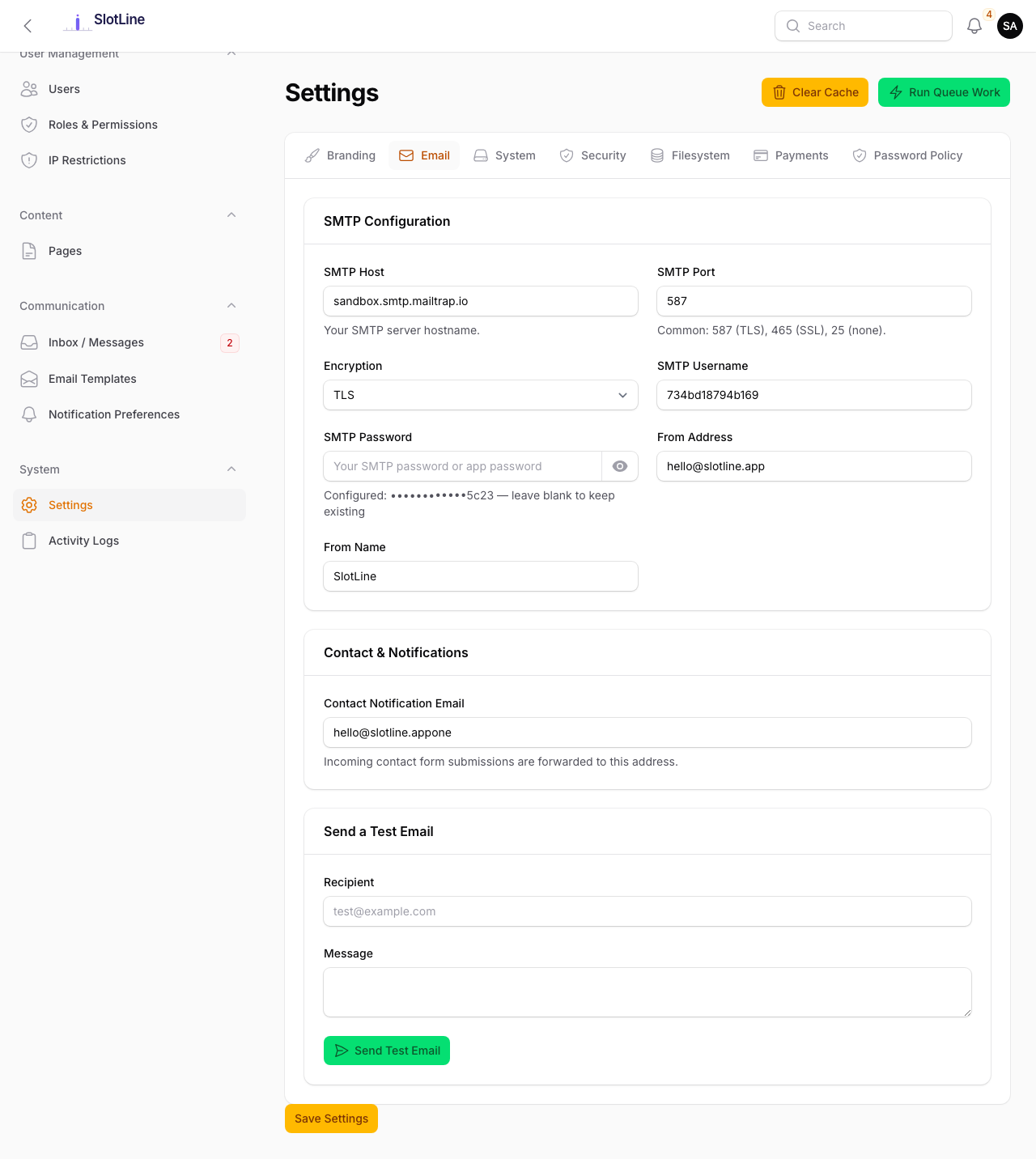
SMTP credentials for outgoing email. Includes a Send Test Email form at the bottom of the tab — enter any address and click send to instantly verify delivery.
System
Maintenance mode toggle with a custom visitor message, timezone selector, date format, and time format (12h / 24h).
Language Management — choose which of the 8 built-in languages are active across the entire platform. Unchecked languages disappear from every language switcher (admin panel, business panel, and public pages) immediately after saving. At least one language must remain enabled. See Multi-Language → Managing Enabled Languages for full details.
Business Registration Options — restrict which timezones and currencies appear in the business setup wizard. Leave blank to allow all.
Security
Session timeout, login attempt limits, lockout duration, Force HTTPS toggle, and Google reCAPTCHA v3 credentials. See the dedicated Security Logs and reCAPTCHA v3 pages.
Filesystem
Switch between local disk and Amazon S3. S3 credentials are stored write-only and never displayed after saving. See Configuration → Filesystem.
Payments
Stripe Publishable Key, Secret Key, and Webhook Signing Secret. See Stripe Payments for full setup instructions.
Password Policy
Password complexity rules, expiry, and history enforcement. See Password Policy.
Header Actions
Two utility buttons appear in the Settings page header:
| Button | What It Does |
|---|---|
| Clear Cache | Runs php artisan optimize:clear — clears config, route, view, and event caches |
| Run Queue Work | Starts a one-off background queue worker process (useful on hosts without Supervisor) |
{primary.fa-info-circle} Settings changes auto-clear the cache. Only run Clear Cache manually after editing
.envdirectly or deploying new code.
{warning.fa-cog} Run Queue Work starts a temporary worker. On production, use Supervisor for a persistent worker. See Web Server Setup → Queue Worker.