Subscription Plans
Plan Fields
| Field | Description |
|---|---|
| Name | Shown to registrants on the sign-up page (e.g. "Starter", "Pro", "Agency") |
| Price | Monthly price. Set to 0 for a free plan |
| Stripe Price ID | The price_... ID from Stripe Dashboard (required for paid plans) |
| Features | Bullet-point list displayed on the registration pricing page |
| Is Active | Only active plans are shown during registration |
| Sort Order | Drag to reorder plans on the registration page |
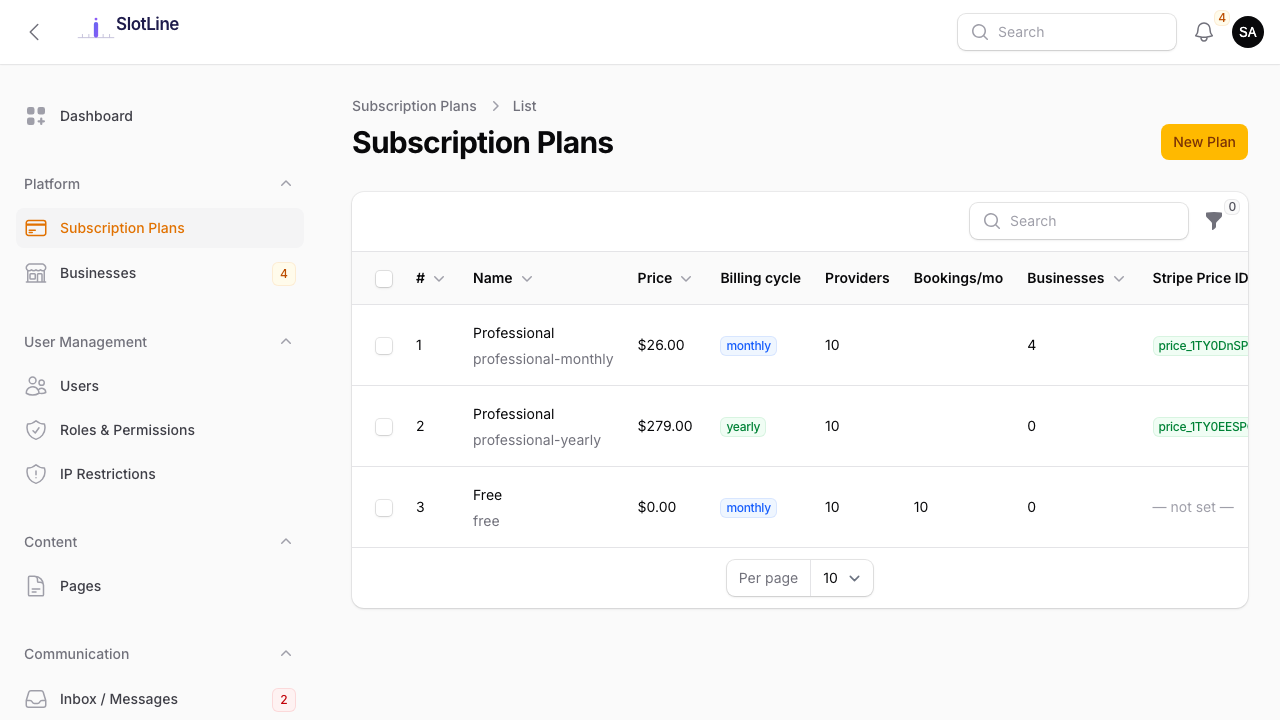
Creating a Free Plan
- Go to Admin → Subscription Plans → New Plan
- Enter a Name (e.g. "Free")
- Set Price to
0.00 - Leave Stripe Price ID empty
- Add any feature bullets you want shown (e.g. "Up to 3 services", "1 provider")
- Toggle Is Active on
- Save
Tenants on a free plan are provisioned immediately at registration — no payment step.
{primary.fa-lightbulb-o} A free plan lets businesses try Slotara before upgrading. You can convert a free-plan tenant to paid at any time from the tenant edit screen.
Creating a Paid Plan
Step 1 — Create the product in Stripe:
- Log in to Stripe Dashboard → Products
- Click + Add Product
- Enter a product name (e.g. "Slotara Pro")
- Add a recurring price: set the amount, currency, and billing interval (monthly/annual)
- Save the product
- Copy the Price ID — it starts with
price_
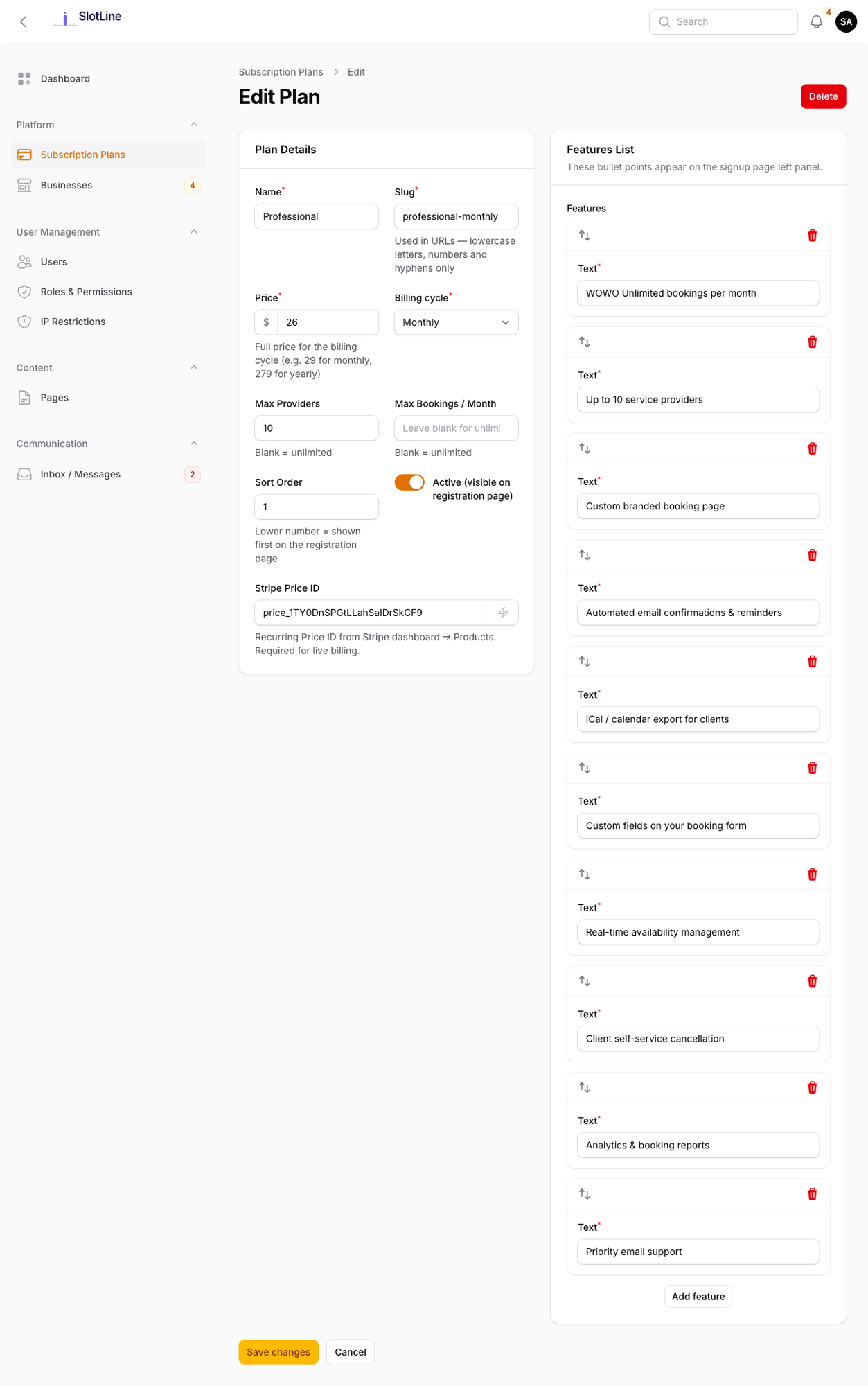
Step 2 — Create the plan in Slotara:
- Go to Admin → Subscription Plans → New Plan
- Enter the Name and Price (must match Stripe)
- Paste the Price ID into the Stripe Price ID field
- Add feature bullets
- Toggle Is Active on
- Save
Registration flow for paid plans:
User fills registration form
        ↓
Redirected to Stripe Checkout (secure payment page)
        ↓
Payment succeeds
        ↓
Business account created automatically
        ↓
Welcome email sent
{warning.fa-exclamation-triangle} Make sure your Stripe Webhook is configured and your Signing Secret is saved in Admin → Settings → Payments. Without it, the webhook won't be verified and tenants will not be provisioned after payment.
Changing a Tenant's Plan
To move a tenant from one plan to another:
- Go to Admin → Businesses
- Click Edit on the tenant
- Change the Subscription Plan dropdown
- Save
{primary.fa-info-circle} Plan changes take effect immediately. There is no automatic Stripe prorating — manage billing adjustments directly in your Stripe Dashboard.