My Bookings
Overview
The My Bookings page gives every registered client a single place to track their appointments across all businesses on your platform — not just one.
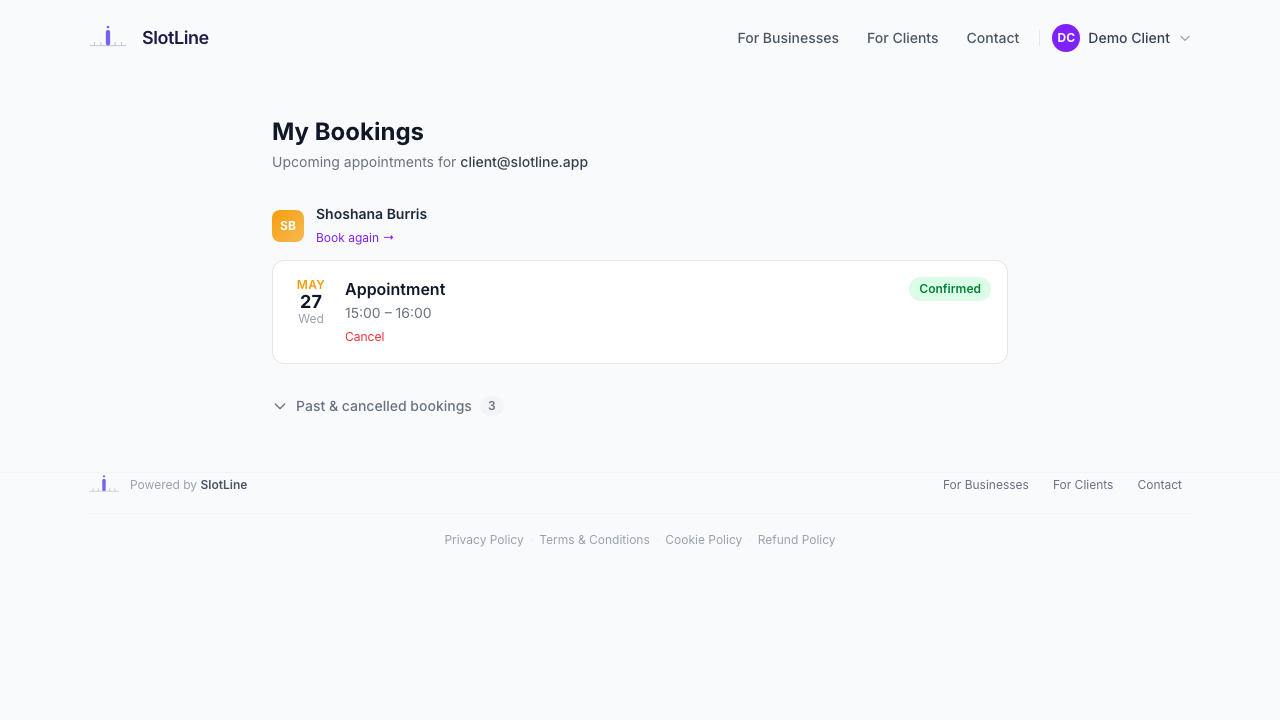
The page is split into two sections:
| Section | Contents |
|---|---|
| Upcoming | All pending and confirmed bookings on or after today, ordered by date, grouped by business |
| Past & Cancelled | Most recent 20 past or cancelled bookings in a collapsible toggle |
Each booking card shows:
- Date badge — month, day of month, and weekday, coloured in the business's brand colour
- Service name and time range
- Status pill — Confirmed (green), Pending (amber), Cancelled (grey), Completed (blue), No-Show (red)
- Cancel button — visible only for upcoming, cancellable bookings
- Cancellation reason — shown in italic on cancelled cards if a reason was provided
Booking Form Pre-fill
When a logged-in client visits any public booking page, their details are automatically populated on the Your Details step:
| Field | Source |
|---|---|
| Full Name | From your account profile |
| From your account (locked — cannot be changed) | |
| Phone | From your account profile |
The email field is read-only for logged-in users. This guarantees that every booking is stored under the correct account email and will appear in My Bookings.
{primary.fa-info-circle} The email lock prevents the most common support issue: a client types a typo or a different address on the booking form and then asks "where is my booking?"
An identity banner at the top of the Your Details step confirms who is booking:
Cancelling a Booking
Clients can cancel any upcoming, cancellable booking directly from My Bookings. Clicking Cancel opens a modal:
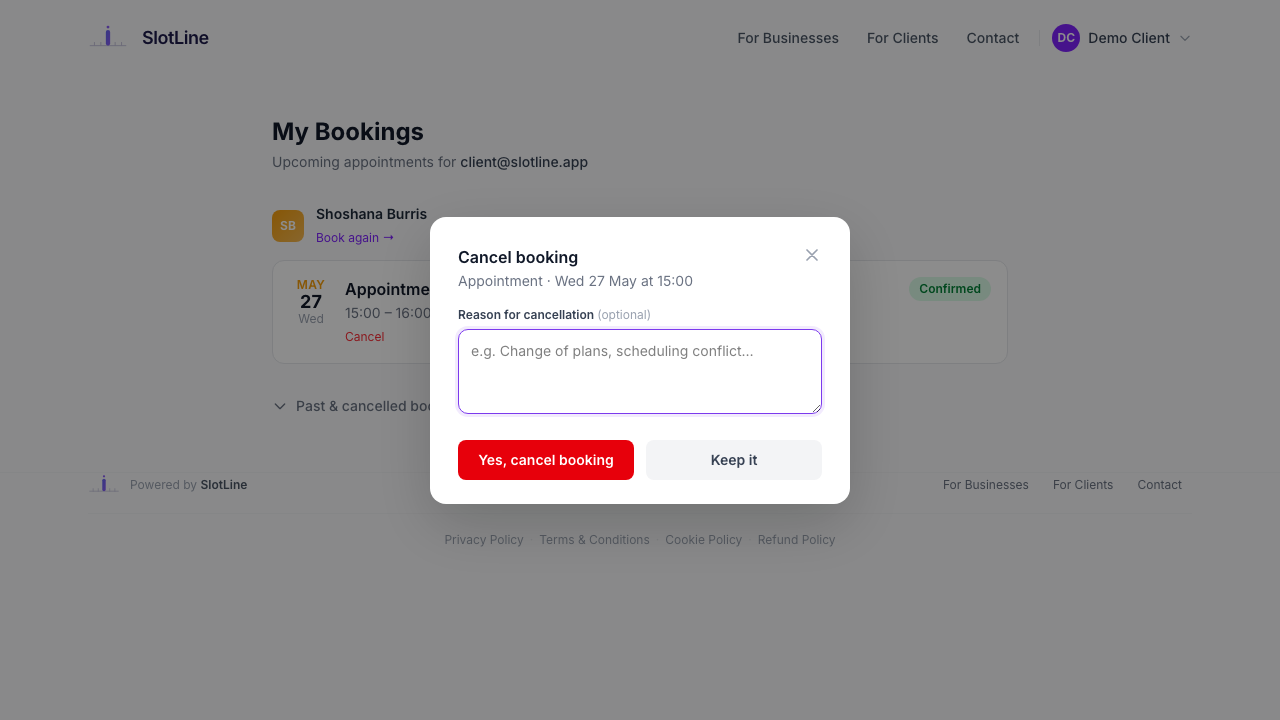
What happens when the client confirms:
- Booking status → Cancelled
- Cancellation reason saved (if entered)
- A cancellation confirmation email is sent to the client
- Staff receive an in-app notification: "Booking #N cancelled by {name} — 'reason'"
- The slot is freed immediately for new bookings
The booking card updates in-place — no page reload. The status badge changes to "Cancelled" and the Cancel button disappears.
Business Settings
Each business controls whether clients can cancel online:
| Setting | Default | Effect |
|---|---|---|
| Allow clients to cancel bookings online | On | Clients see the Cancel button and can cancel from My Bookings or via email link |
| Off | Cancel button is hidden; clients see "This business does not allow online cancellations. Please contact them directly." |
{warning.fa-exclamation-triangle} Disabling online cancellation does not prevent staff from cancelling bookings inside the Business Panel — it only affects the client-facing flow.