Providers & Staff
Providers Overview
Providers are the bookable team members — the people clients actually schedule time with. Each provider has their own profile, schedule, and service assignments.
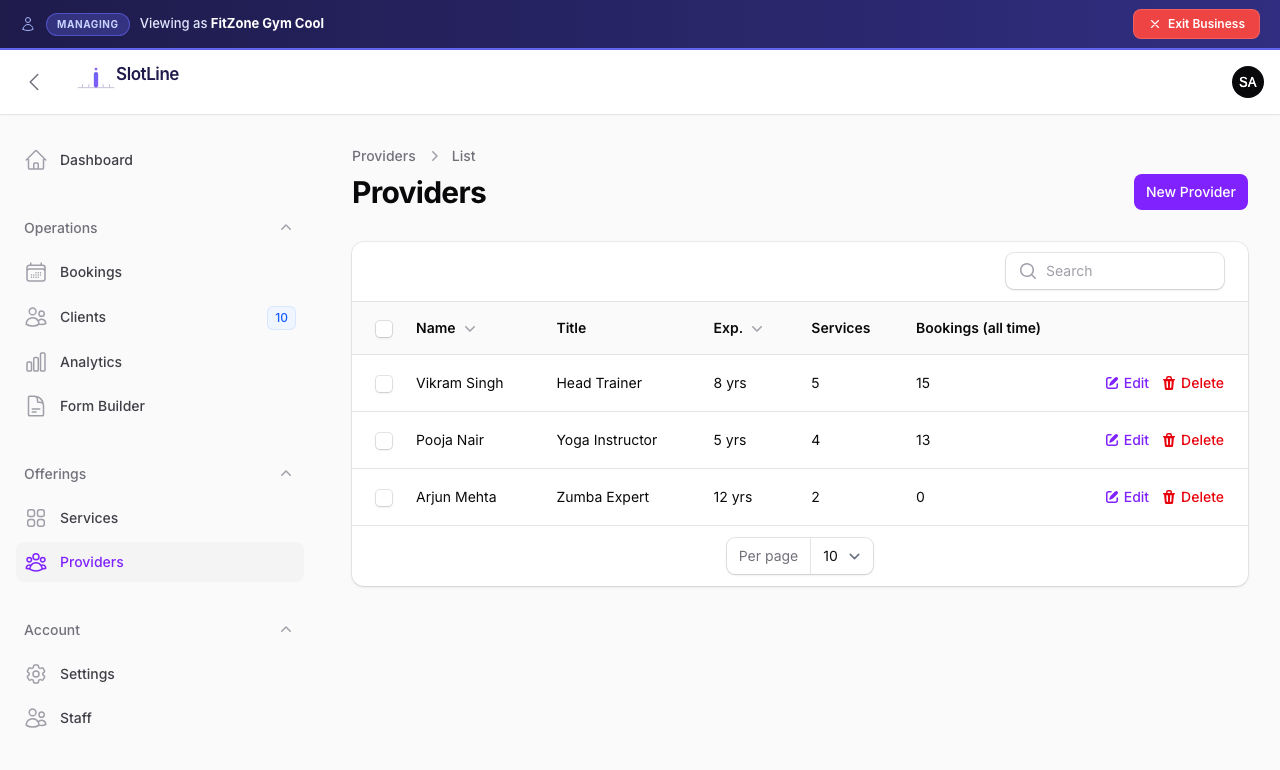
Provider Fields
| Field | Description |
|---|---|
| Name | Displayed on the booking page provider card |
| Links this provider to a user account on the platform | |
| Bio | Short description shown on the booking page |
| Avatar | Profile photo — shown on the booking page and panel |
| Working Hours | Day-by-day schedule defining bookable windows |
| Is Active | Only active providers appear on the booking page |
{primary.fa-info-circle} The Email field links the provider to a user account. If no account exists for that email, one is created automatically and a welcome email is sent.
Working Hours
Working hours define when a provider is available for bookings. Set per day of the week.
To configure:
- Edit the provider
- Open the Working Hours tab
- Toggle each day on or off
- Set Start Time and End Time for enabled days
- Save
Monday     ✅  09:00 – 17:00
Tuesday    ✅  09:00 – 17:00
Wednesday  ✅  09:00 – 13:00   ← half day
Thursday   ✅  09:00 – 17:00
Friday     ✅  09:00 – 17:00
Saturday   ❌  (off)
Sunday     ❌  (off)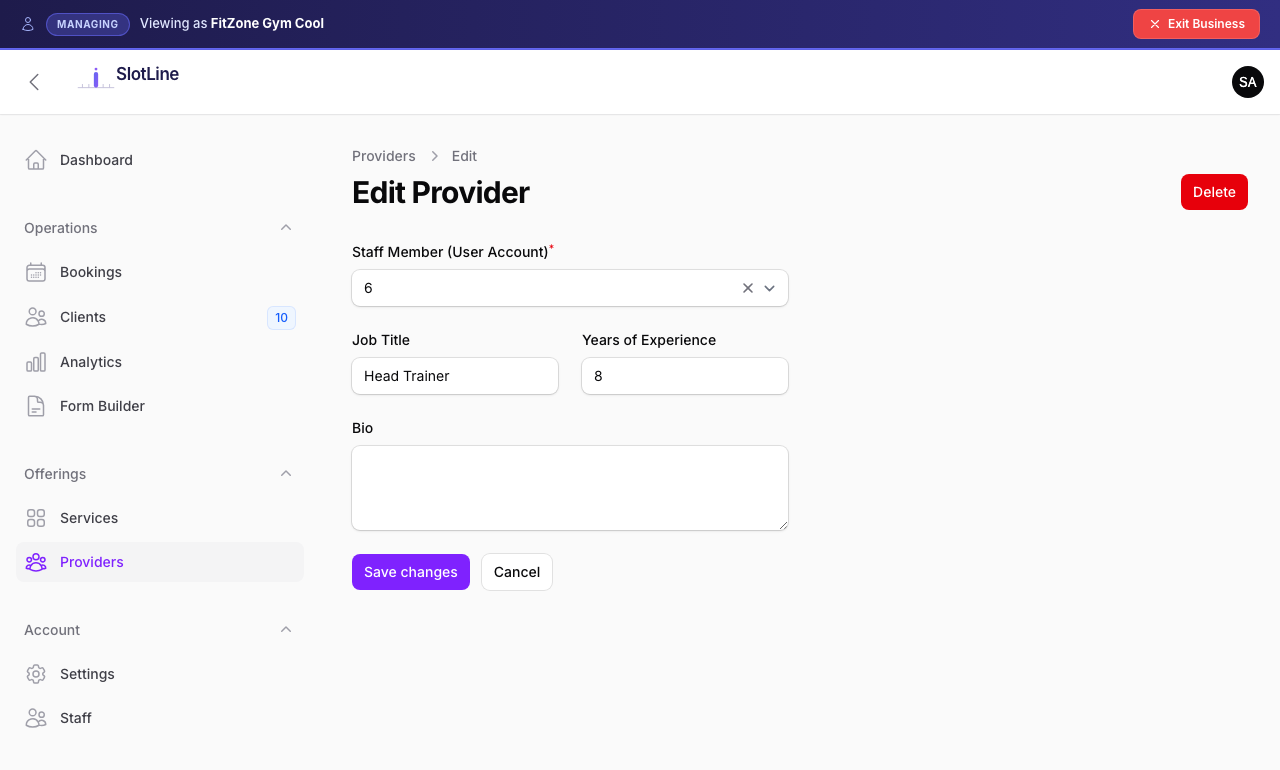
{warning.fa-exclamation-triangle} A provider with no working hours configured (all days off) will have zero available slots, regardless of the service settings.
Staff Overview
Staff are team members who need access to the Business Panel to help manage bookings — but are not themselves bookable. They don't appear on the public booking page.
What staff can do:
| Action | Allowed |
|---|---|
| View all bookings | ✅ Yes |
| Create bookings manually | ✅ Yes |
| Change booking status | ✅ Yes |
| View services | ✅ Read-only |
| Edit services | ❌ No |
| View providers | ✅ Read-only |
| Edit providers | ❌ No |
| View clients | ❌ No |
| Change business settings | ❌ No |
{danger.fa-ban} Staff cannot access the Clients section or Business Settings. These are owner-only areas. If a staff member needs these permissions, they should be given the
tenant_ownerrole instead.
Adding Staff
- Go to Business Panel → Staff → Add Staff
- Enter their email address
- If an account with that email already exists — it is linked
- If no account exists — a new user account is created automatically
- The new staff member receives a welcome email with login instructions
{primary.fa-info-circle} Staff log in at
/manage— not/admin. Removing a staff member from your team does not delete their user account.
Role Comparison
| Capability | |||
|---|---|---|---|
| Manage services | ✅ | ❌ | ❌ |
| Manage providers | ✅ | ❌ | ❌ |
| Manage staff | ✅ | ❌ | ❌ |
| View all bookings | ✅ | ❌ | ✅ |
| View own bookings | ✅ | ✅ | ✅ |
| Create bookings | ✅ | ❌ | ✅ |
| View clients | ✅ | ❌ | ❌ |
| Business settings | ✅ | ❌ | ❌ |
| Appears on booking page | ✅ (if provider too) | ✅ | ❌ |