Security & Logs
Activity Logs
Slotara automatically records every create, update, and delete action performed by any user across the entire platform.
Each log entry contains:
| Field | Description |
|---|---|
| Causer | The user who performed the action |
| Subject | The model that was changed (e.g. Booking, Service, User) |
| Event | created, updated, or deleted |
| Old Values | Field values before the change |
| New Values | Field values after the change |
| Timestamp | Exact date and time |
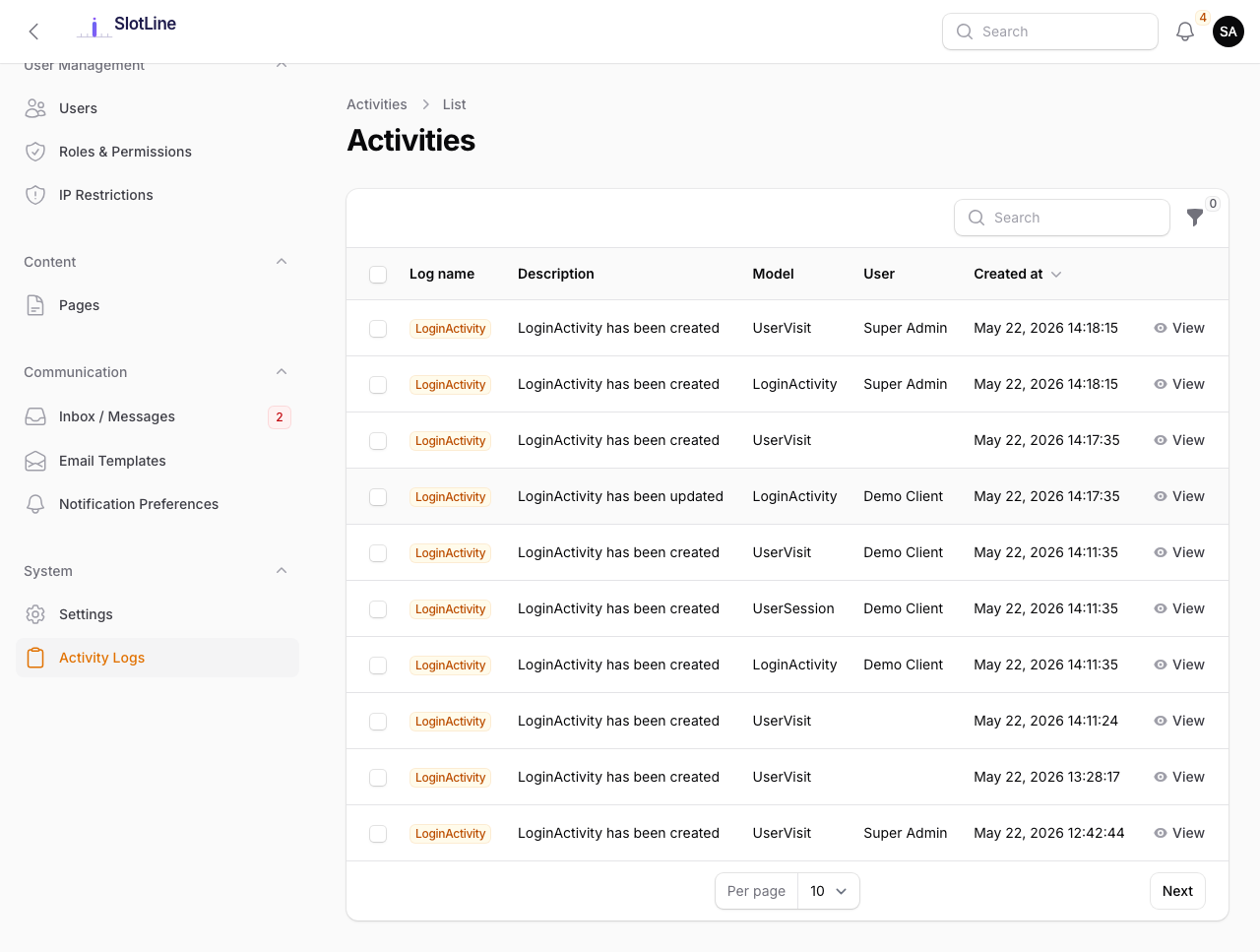
{primary.fa-lightbulb-o} Use the activity log to audit what changed when something looks wrong — e.g. who deleted a booking, or what settings were modified and by whom.
Login Activity
Every authentication attempt — successful or failed — is recorded here.
| Field | Description |
|---|---|
| User | Email address used in the attempt |
| IP Address | Client IP at the time of the attempt |
| User Agent | Browser and device string |
| Status | |
| Timestamp | Exact date and time |
Use this log to:
- Investigate suspicious access attempts
- Identify brute force attacks by IP
- Confirm which device a user last logged in from
{warning.fa-exclamation-triangle} If you see a high volume of Failed attempts from a single IP, add it to Admin → IP Restrictions → Deny to block future attempts.
Impersonation Logs
Every time a super admin uses the Impersonate feature, a permanent audit record is created.
| Field | Description |
|---|---|
| Impersonator | The super admin who started the session |
| Target User | The user being impersonated |
| Started At | Session start timestamp |
| Ended At | Session end timestamp (when "Stop Impersonating" was clicked) |
| IP Address | Admin's IP during the session |
{danger.fa-ban} Impersonation logs cannot be deleted through the admin interface. They exist as a permanent audit trail. Treat the ability to impersonate as a privileged action with accountability.
IP Restrictions
Add IP rules to restrict who can access the admin panel:
| Rule Type | Effect |
|---|---|
| Allow | Only IPs on the allow list can access the admin panel. All others are blocked. |
| Deny | Listed IPs are blocked. All other IPs are allowed. |
Leave the list empty to allow all IPs (default behaviour).
Example use cases:
- Lock the admin panel to your office IP and VPN range
- Block a specific IP that has been making repeated failed login attempts
- Allow only your own IP while setting up the platform
{warning.fa-exclamation-triangle} If you add an Allow rule and forget to include your own IP, you will be locked out of the admin panel. Keep a direct SSH or database connection available so you can remove the rule if this happens.
Security Headers
The following HTTP security headers are applied automatically to every response:
| Header | Value | Purpose |
|---|---|---|
X-Frame-Options |
SAMEORIGIN |
Prevents clickjacking — page can only be framed by the same origin |
X-Content-Type-Options |
nosniff |
Prevents MIME-type sniffing |
Referrer-Policy |
strict-origin-when-cross-origin |
Limits referrer info sent to external sites |
X-XSS-Protection |
1; mode=block |
Enables browser XSS filtering (legacy browsers) |
For additional protection, add a
Content-Security-Policyheader in your Nginx or Apache config to restrict which resources can be loaded.