Contact Inbox
Navigation Badge
The Inbox sidebar item shows a
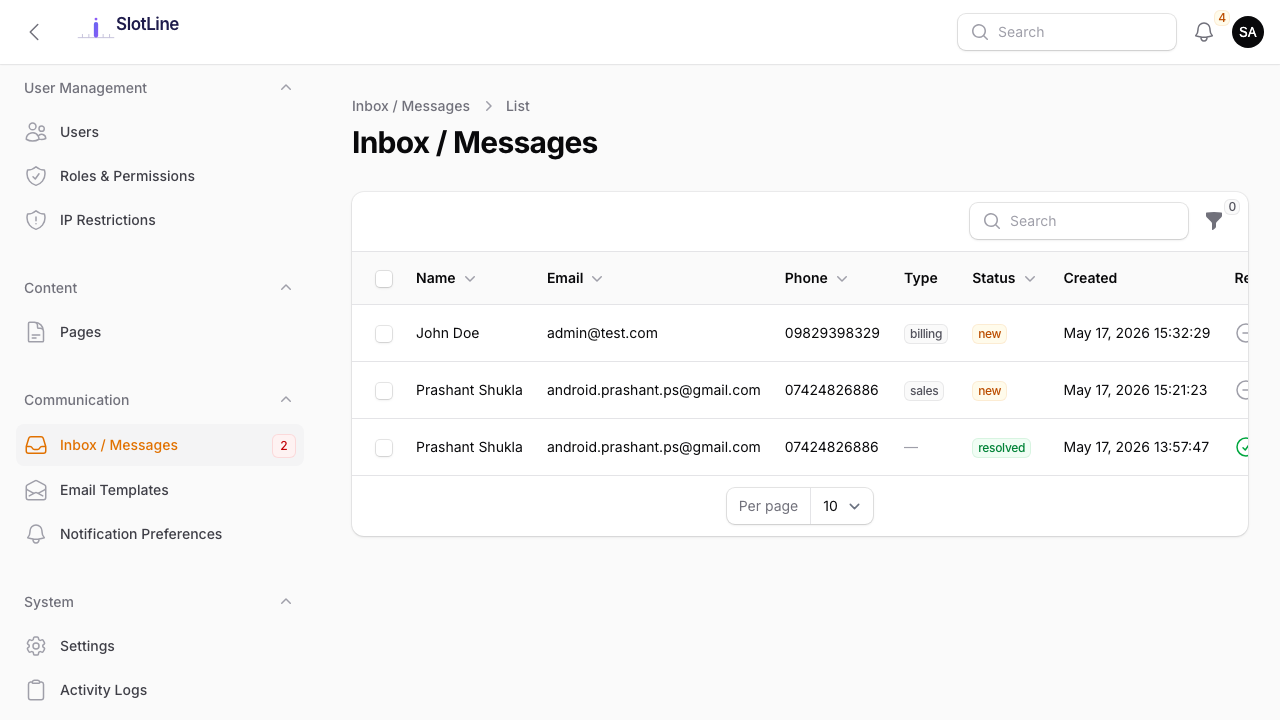
Message Statuses
| Status | Meaning | Badge Colour |
|---|---|---|
| Just received, not yet acted on | Red | |
| Being reviewed or handled | Orange | |
| Fully addressed and closed | Green |
Messages stay in the inbox permanently until explicitly deleted. Status is purely for your workflow — it does not notify the customer.
Replying to a Customer
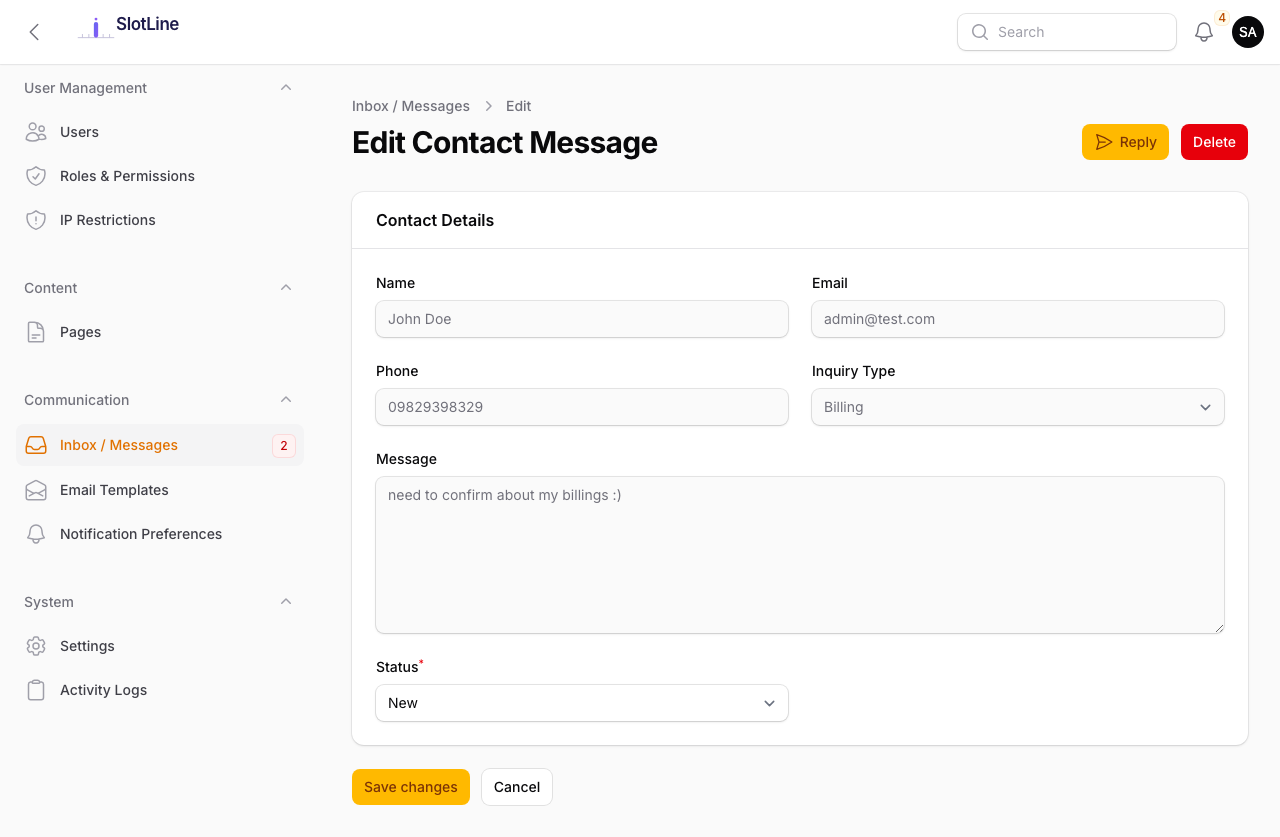
- Find the message in Admin → Inbox
- Click the Reply action button (paper plane icon)
- Type your response in the modal
- Click Send Reply
What happens automatically:
- Your reply and timestamp are saved to the database
- An email is sent to the customer using the
admin_contact_replytemplate — including their original message and your response - Message status is automatically set to Resolved
- The Replied column shows a
green checkmark
{primary.fa-reply} You can reply multiple times. Each reply sends a fresh email. Change status back to In Progress to track follow-ups.
Bulk Actions
Select multiple messages using the checkboxes, then use the bulk action menu:
| Action | Effect |
|---|---|
| Mark as In Progress | Sets all selected messages to In Progress |
| Mark as Resolved | Sets all selected messages to Resolved |
| Delete | Permanently removes the selected messages |
{danger.fa-ban} Bulk Delete is permanent — there is no recycle bin. Mark messages as Resolved instead of deleting them if you want to keep the conversation history.
The Public Contact Form
The contact form is available at /contact. It supports:
| Feature | Details |
|---|---|
| Fields | Name, Email, Phone, Inquiry Type, Message |
| reCAPTCHA v3 | Invisible bot protection (when configured in Settings) |
| Confirmation Email | Sent to the submitter with the contact_confirmation template |
| Admin Notification | Email sent to the configured contact_email address |
| Inbox Entry | Message is saved to the database immediately |
{warning.fa-cog} If contact submissions are not appearing in the inbox, verify your queue worker is running — inbox entries are dispatched as queued jobs.