Password Policy
Overview
Slotara includes a configurable password policy that enforces complexity rules, prevents password reuse, and can force periodic password changes. Changes take effect immediately for all users.
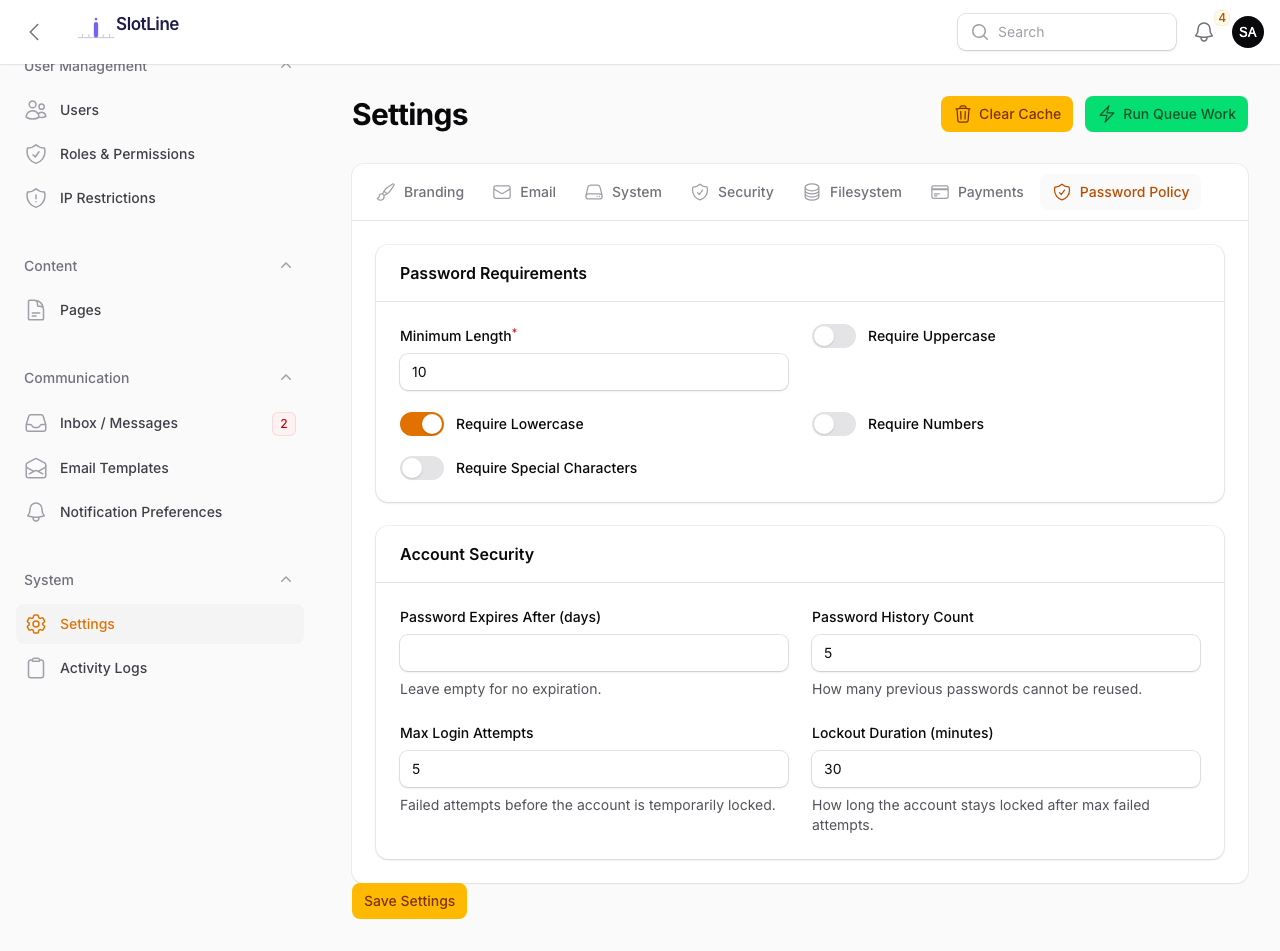
Policy Settings
| Setting | Default | Description |
|---|---|---|
| Minimum Length | 8 |
Minimum character count required |
| Require Uppercase | Off | At least one uppercase letter (A–Z) |
| Require Lowercase | Off | At least one lowercase letter (a–z) |
| Require Numbers | Off | At least one digit (0–9) |
| Require Symbols | Off | At least one special character (!@#$%^&*) |
| Password History | 0 |
Number of previous passwords that cannot be reused |
| Password Expiry (days) | 0 |
Days before a password must be changed (0 = never) |
Example — Strong policy configuration:
Minimum Length:   12
Require Uppercase: ✅
Require Lowercase: ✅
Require Numbers:   ✅
Require Symbols:   ✅
Password History:  5
Password Expiry:   90 days
{primary.fa-info-circle} When Minimum Length is set, the registration form shows "Minimum X characters" in the placeholder, reducing failed attempts.
Enforcement Points
The policy is validated at every password entry point across the platform:
| Location | Policy Enforced |
|---|---|
| Registration page | ✅ Yes |
| Profile → Change Password | ✅ Yes |
| Forgot Password → Reset flow | ✅ Yes |
| Admin-created user accounts | ✅ Yes |
When a rule fails, the validation error names the specific rule that was violated:
✗ Password must be at least 12 characters.
✗ Password must contain at least one uppercase letter.
✗ Password must contain at least one symbol.
{warning.fa-exclamation-triangle} Changing the policy does not invalidate existing users' passwords. Users with passwords that no longer meet the new rules will only be required to update on their next voluntary password change — unless Password Expiry is also set.
Password History
When Password History is set to a value greater than 0, the system stores a hash of each password the user has set. When they change their password, the new one is checked against their history.
| Setting | Effect |
|---|---|
0 |
History check disabled — any password is accepted |
3 |
Last 3 passwords cannot be reused |
10 |
Last 10 passwords cannot be reused |
User tries to change password
          ↓
New password hashed
          ↓
Compared against stored history hashes
          ↓
    Match found?
    /          \
  Yes           No
   ↓             ↓
Rejected:     Accepted:
"Cannot       Password saved,
reuse recent  old one added to
passwords"    history
History is applied at:
- Profile → Change Password
- Forgot Password → Reset flow
- Admin-forced password change
Password Expiry
When Password Expiry is set to a value greater than 0, users must change their password after that many days.
On login, if password has expired:
- User enters their email and password — credentials are valid
- They are redirected to the Change Password page instead of their dashboard
- A message explains: "Your password has expired. Please set a new one."
- The new password must pass all current policy rules
- After updating, they are logged in and redirected normally