Services
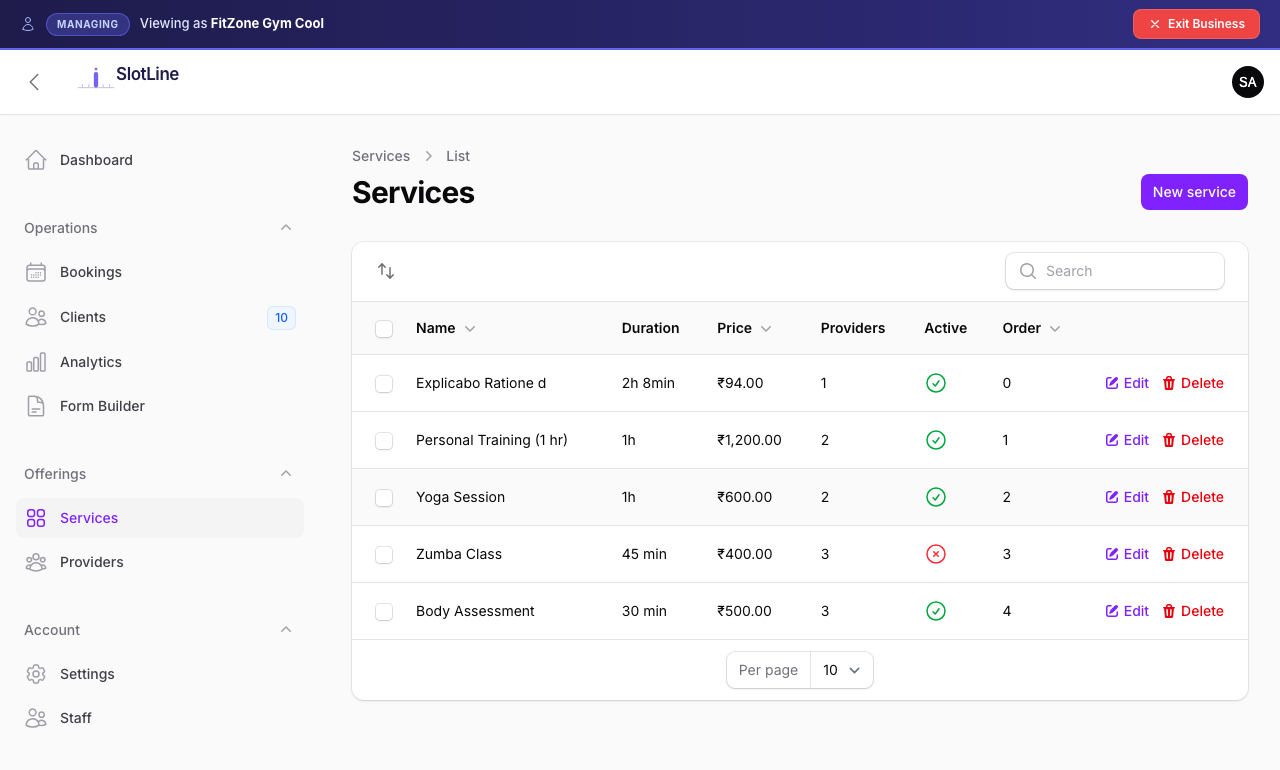
Service Fields
| Field | Type | Description |
|---|---|---|
| Name | Text | Shown on the public booking page |
| Description | Textarea | Short blurb — displayed on the service card |
| Duration | Minutes | Used to calculate available time slots |
| Price | Decimal | Display price. Set to 0 for a free service |
| Requires Payment | Toggle | When on, triggers Stripe Checkout before confirming |
| Image | Upload | Cover image shown on the booking page service card |
| Is Active | Toggle | Only active services appear for booking |
| Sort Order | Drag handle | Controls order on the public booking page |
Creating a Service
- Go to Business Panel → Services → New Service
- Fill in the Name, Description, Duration, and Price
- Upload a cover Image (recommended: 800×500px, JPG or PNG)
- Toggle Requires Payment if clients must pay at booking
- Toggle Is Active on
- Save — the service is now visible on your booking page
{primary.fa-lightbulb-o} Set Duration accurately — it determines how many bookings fit in a day. A 60-minute service with a provider working 9am–5pm generates 8 available slots.
Assigning Providers
Each service can be delivered by one or more providers. Clients choose a provider when booking.
To assign providers:
- Edit the service
- Open the Providers tab
- Check each provider who offers this service
- Save
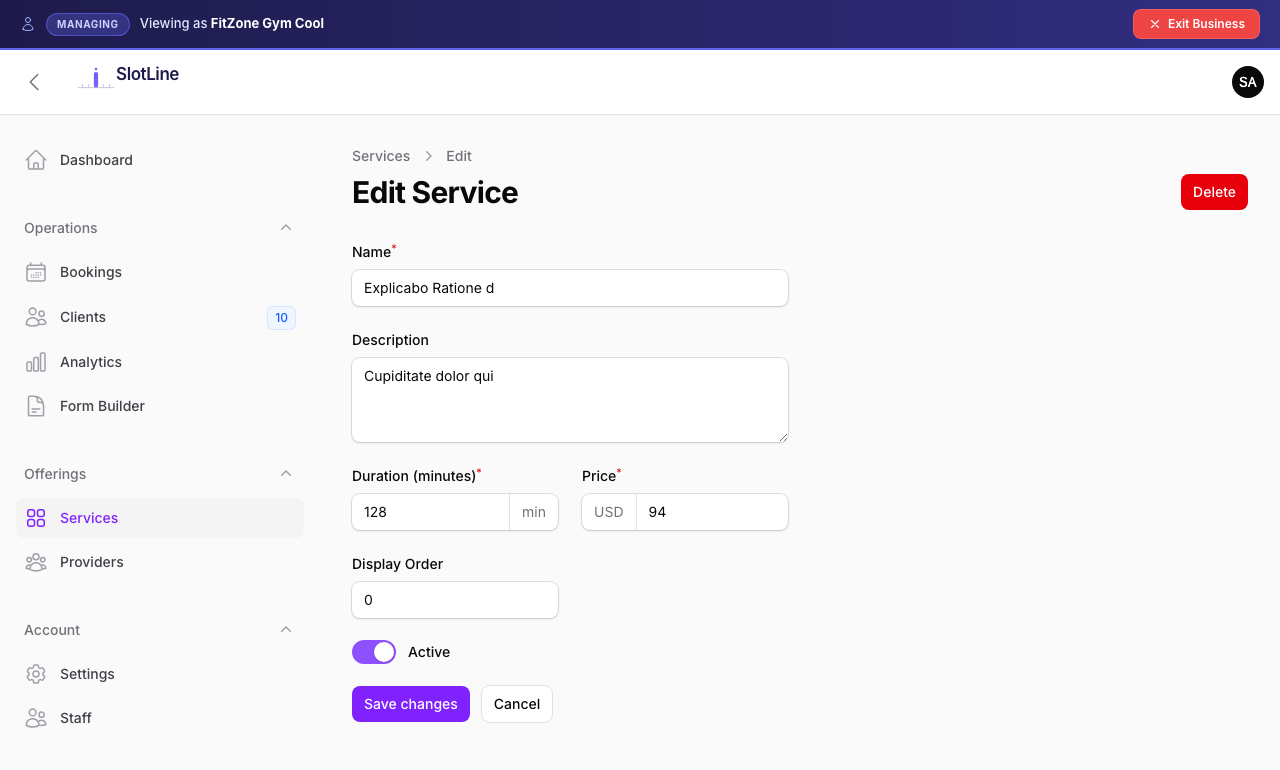
{warning.fa-exclamation-triangle} A service with no providers assigned will not appear on the booking page — even if the service itself is active. Always assign at least one active provider.
Availability & Slots
Available time slots are calculated dynamically at booking time. The slot engine respects:
| Factor | Effect |
|---|---|
| Provider working hours | Slots only generated within the provider's enabled hours for that day |
| Service duration | Slots are spaced by the service duration (e.g. 60min service → 9:00, 10:00, 11:00…) |
| Existing confirmed bookings | Already-booked slots are blocked and not shown |
| Provider active status | Inactive providers are excluded |
Provider works: 9:00 – 17:00
Service duration: 90 minutes

Generated slots:
  09:00 → 10:30
  10:30 → 12:00
  12:00 → 13:30
  13:30 → 15:00
  15:00 → 16:30

Total: 5 slots per day
{success.fa-check-circle} Slots are generated in real time — no pre-population or caching. A slot only appears if it is genuinely available the moment the customer views the page.
Pricing & Payments
| Service Type | Booking Flow |
|---|---|
Free (Price = 0, Requires Payment = off) |
Booking confirmed immediately — no payment step |
Displayed price, no payment (Price > 0, Requires Payment = off) |
Price shown for reference only — booking confirmed immediately |
Paid (Price > 0, Requires Payment = on) |
Client redirected to Stripe Checkout — booking confirmed only after payment succeeds |
See Stripe Payments for full setup instructions including webhook configuration.