Businesses (Tenants)
Tenant Fields
Each business record stores the following:
| Field | Description |
|---|---|
| Business Name | Displayed on the public booking page header |
| Slug | URL identifier — the booking page is at /{slug} |
| Owner | The linked user account (must have tenant_owner role) |
| Subscription Plan | Which plan this tenant is on |
| Status | Active or Suspended |
| Currency | Used for display on the booking page |
| Timezone | Business-specific timezone for scheduling |
| Logo | Appears on the public booking page and in emails |
| Extra modules | Add-on modules this business may use even though its plan doesn't include them |
{warning.fa-link} The slug must be unique platform-wide. Changing it after launch breaks all existing client bookmarks and shared links.
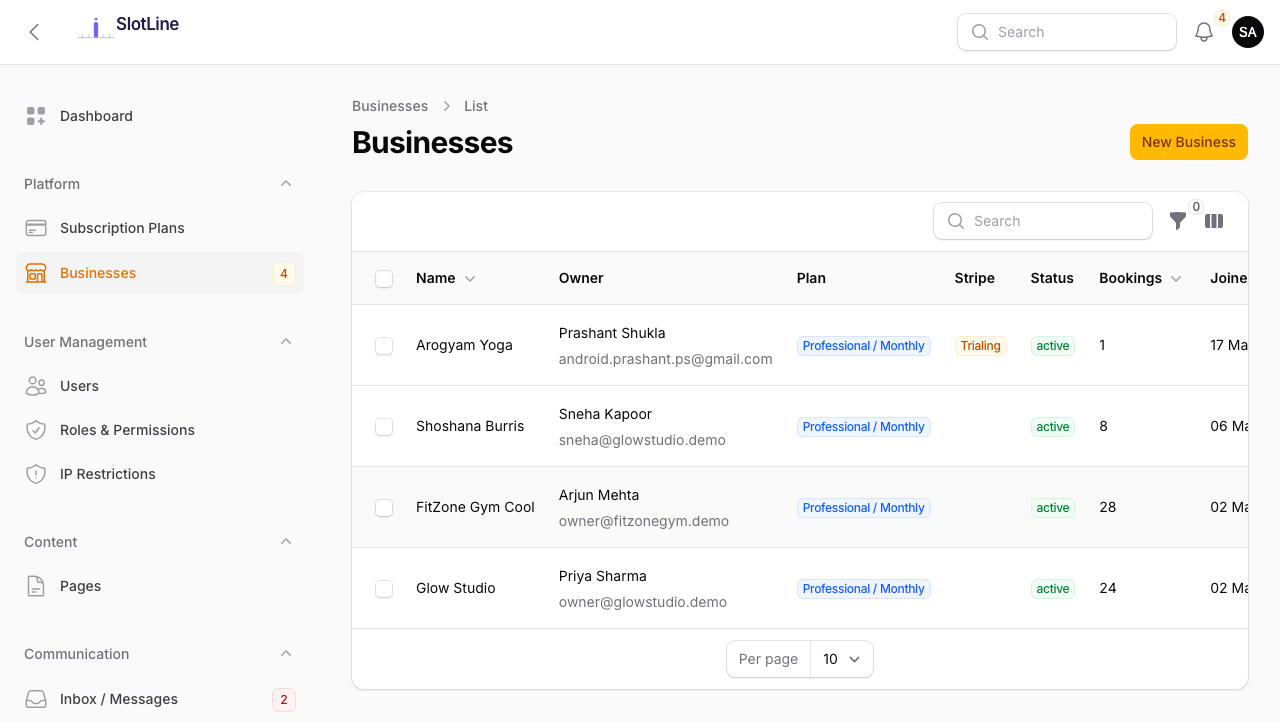
Managing Tenants
From the Admin → Businesses list, each row provides these actions:
| Action | Description |
|---|---|
| Edit | Update business details, owner, or subscription plan |
| View Booking Page | Opens their public /{slug} page in a new tab |
| Impersonate Owner | Log in as the tenant owner to debug their Business Panel |
| Suspend | Disables the tenant — booking page shows an "unavailable" message |
| Reactivate | Re-enables a suspended tenant |
| Delete | Permanently removes the tenant and all their data |
{danger.fa-ban} Delete is irreversible. It permanently removes all services, providers, bookings, and client records for that tenant. Always confirm with the business owner before deleting.
Self-Registration Flow
When a new business registers via /register:
- They fill in business name, slug, email, password, and choose a plan
- Free plan → tenant is provisioned immediately, redirected to Business Panel
- Paid plan → redirected to Stripe Checkout
- Payment succeeds → Stripe sends
checkout.session.completedwebhook - Slotara receives the webhook → provisions the tenant automatically
- Super admin receives a notification (if
new_registrationpreference is enabled) - Business owner receives a welcome email
Register → Stripe Checkout → Webhook → Tenant Provisioned → Business Panel{warning.fa-exclamation-triangle} If a paid-plan tenant is not provisioned after payment, check Admin → Activity Logs for webhook errors. Verify your Stripe Webhook Signing Secret matches in both Stripe Dashboard and Admin → Settings → Payments.
Suspending a Tenant
Suspending a tenant:
- Makes their public booking page unavailable (clients see a message)
- Does not delete any data
- Does not log out the tenant owner (they can still see their panel but cannot serve clients)
Reactivating restores everything immediately — no re-provisioning needed.
{primary.fa-pause-circle} Use suspension instead of deletion for late payments or temporary closures. Data is preserved and the tenant can be reactivated instantly.