Dashboard & Settings
Dashboard
The admin dashboard is your platform health snapshot. It loads automatically when you visit /admin.
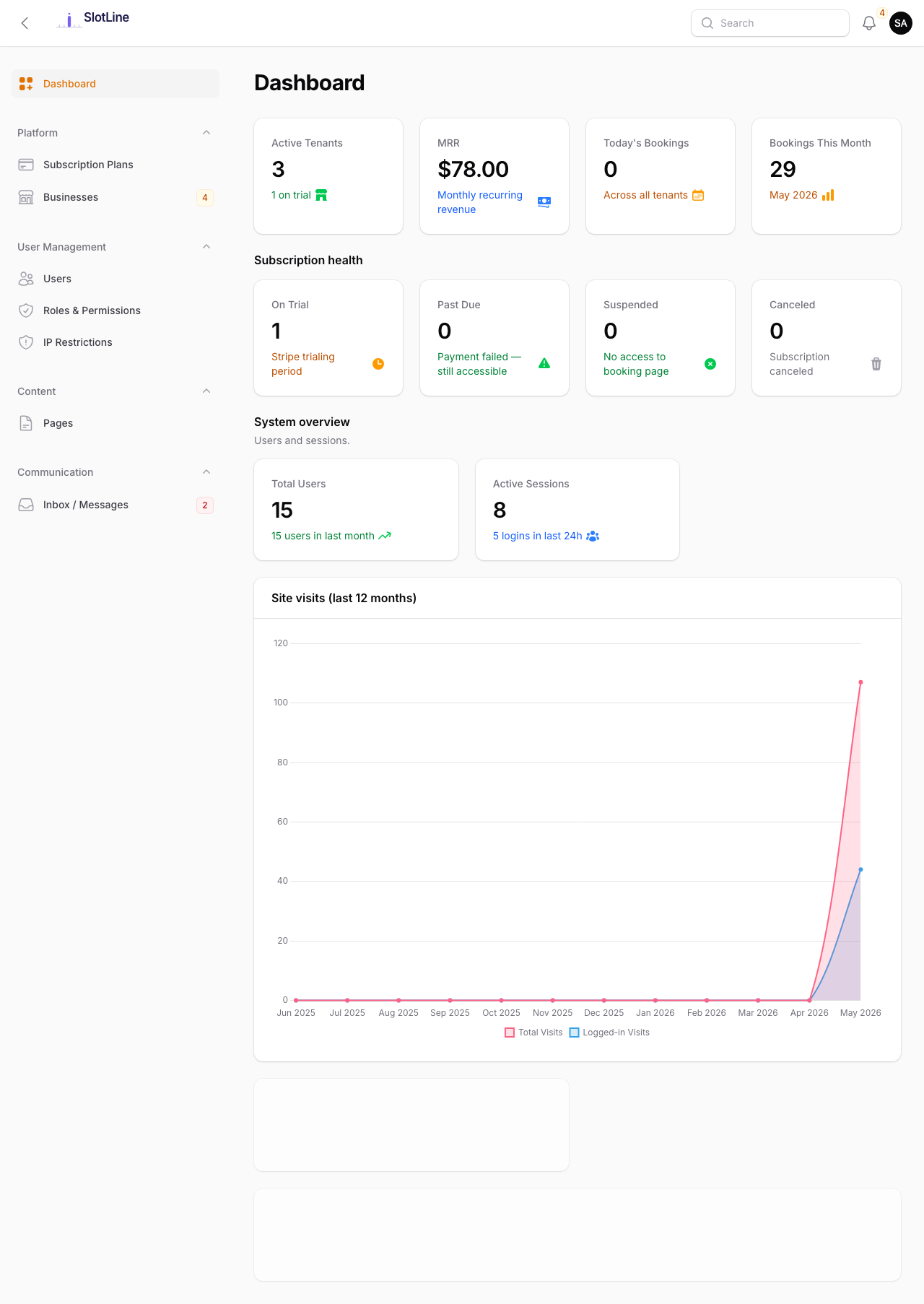
At a glance you can see:
- Total users and businesses registered
- Active subscriptions
- Recent user registrations
- Latest activity log entries
Settings Tabs
Navigate to Admin → Settings. All changes save immediately with no server restart.
Branding
Upload your logo and favicon, set the site name, and control the admin sidebar logo size. See Configuration → Branding.
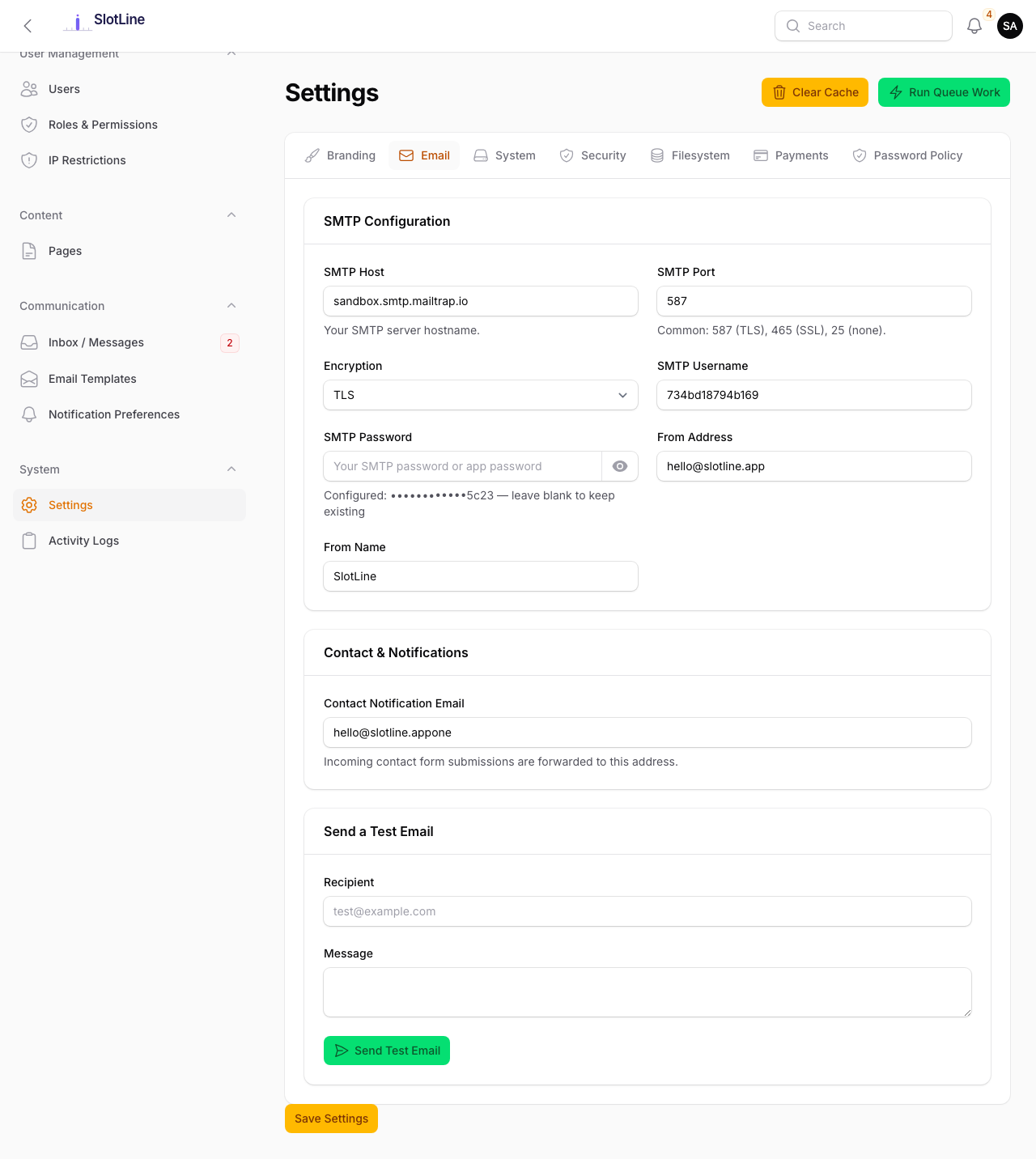
SMTP credentials for outgoing email. Includes a Send Test Email form at the bottom of the tab — enter any address and click send to instantly verify delivery. The test uses the values currently on screen (you don't have to save first), gives up after 15 seconds, and explains common failures such as a blocked port, a certificate error or the wrong encryption for the port.
| Encryption | Use it for |
|---|---|
| SSL | Implicit TLS — usually port 465, but works on any port your provider gives |
| TLS | STARTTLS — usually port 587; the connection is upgraded when the server offers it |
| None | Plain SMTP, e.g. an internal relay on port 25. No encryption is attempted |
Verify the server's SSL certificate — on by default. Turn it off only for an internal relay with a self-signed certificate.
System
Maintenance mode toggle with a custom visitor message, timezone selector, date format, and time format (12h / 24h).
Language Management — choose which of the 8 built-in languages are active across the entire platform. Unchecked languages disappear from every language switcher (admin panel, business panel, and public pages) immediately after saving. At least one language must remain enabled. See Multi-Language → Managing Enabled Languages for full details.
Business Registration Options — restrict which timezones and currencies appear in the business setup wizard. Leave blank to allow all.
Security
Session timeout, login attempt limits, lockout duration, Force HTTPS toggle, and Google reCAPTCHA v3 credentials. See the dedicated Security Logs and reCAPTCHA v3 pages.
Filesystem
Switch between local disk and Amazon S3. S3 credentials are stored write-only and never displayed after saving. See Configuration → Filesystem.
Payments
Choose the platform payment gateway used when businesses subscribe to a paid plan. Pick a gateway card — Stripe, Razorpay, PayPal, Paddle, or Paystack — and only that gateway's credential fields are shown (the same card-based picker used on the tenant booking-payments page). See Stripe Payments for full setup instructions.
A business's account is created only after the gateway confirms the payment for that sign-up; opening a gateway's return page without paying sends the visitor back to the sign-up form.
{primary.fa-info-circle} Razorpay subscriptions are authorised on your site with Razorpay Checkout, because Razorpay's subscription link never returns the customer to your site.
{primary.fa-info-circle} Paddle has no hosted checkout page, so the sign-up opens Paddle's checkout on your site with Paddle.js. Enter the Client-side token (Paddle → Developer Tools → Authentication) next to the API key, and approve your domain under Paddle → Checkout → Website approval.
For Paystack, enter your Public Key and Secret Key; the Secret Key also verifies subscription webhooks (/paystack/webhook) via HMAC-SHA512. Set each plan's Paystack Plan code (PLN_…) under Admin → Subscription Plans so recurring subscriptions can be created at signup.
SEO
Site description, keywords and robots rules, plus Google Analytics, Google Tag Manager and Facebook Pixel IDs. The tracking tags load on the home page, the public pages, sign-up and sign-in.
Custom Code
Add your own code for analytics, chat widgets or tracking pixels:
| Field | Where it goes |
|---|---|
| Custom CSS | A <style> block after the built-in styles. Paste plain CSS, without the <style> tag |
| Header Code | Just before </head>: analytics tags, verification meta tags, fonts |
| Footer Code | Just before </body>: chat widgets and scripts that should load last |
| Also load in business dashboards | Off by default. On: business dashboards load the code too |
The code loads on the home page, the public pages, sign-up and sign-in. Business booking pages can run on a business's own domain, so they never load it, and neither does this admin panel, so if a snippet breaks a page you can still open Settings and remove it.
{warning.fa-exclamation-triangle} Code pasted here runs on every page it is added to. Only paste code from a provider you trust.
Password Policy
Password complexity rules, expiry, and history enforcement. See Password Policy.
Header Actions
Two utility buttons appear in the Settings page header:
| Button | What It Does |
|---|---|
| Clear Cache | Runs php artisan optimize:clear — clears config, route, view, and event caches |
| Run Queue Work | Starts a one-off background queue worker process (useful on hosts without Supervisor) |
{primary.fa-info-circle} Settings changes auto-clear the cache. Only run Clear Cache manually after editing
.envdirectly or deploying new code.
{warning.fa-cog} Run Queue Work starts a temporary worker. On production, use Supervisor for a persistent worker. See Web Server Setup → Queue Worker.